

WhatsApp API Integration with Google Sheets: Step-by-Step Tutorial
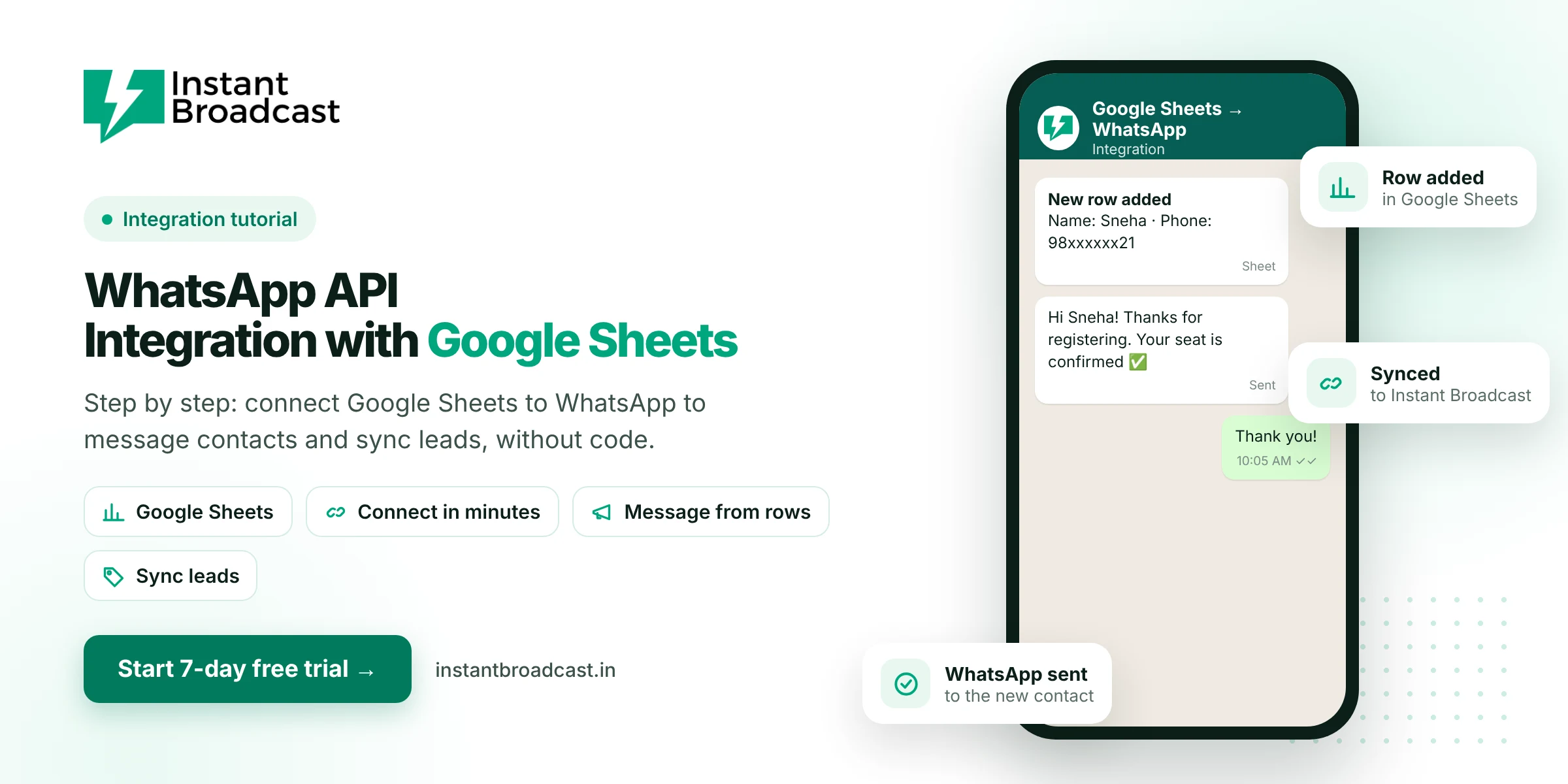
You can connect Google Sheets to the official WhatsApp Business API with Instant Broadcast, so contacts in a sheet can receive WhatsApp messages and new leads can sync between your sheet and your WhatsApp inbox, without writing code. This tutorial covers how to prepare your sheet, connect it, map the columns and send your first messages.
What WhatsApp API Integration with Google Sheets Can Do
- Message contacts from a sheet, such as event registrations, order lists or dealer lists.
- Send a WhatsApp message when a new row is added, for example a welcome message for a form submission.
- Sync leads from your sheet into Instant Broadcast so your team can follow up in the shared inbox.
- Personalise each message with columns such as name, order number or date.
Before you start
- An Instant Broadcast account with your WhatsApp business number connected. The 7-day free trial works for this.
- At least one approved message template for the message you want to send.
- A Google account with edit access to the spreadsheet.
- Opt-in from everyone in the sheet to receive WhatsApp messages from your business.
Step 1: Prepare your sheet
Use one row per contact and clear column headers. A clean structure prevents most errors.
| Column | Example | Tip |
|---|---|---|
| Name | Sneha Shah | Used to personalise the message |
| Phone | 919876543210 | Include the country code, with no spaces or symbols |
| Opt-in | Yes | Only message rows marked Yes |
| Tag or segment | Webinar-Nov | Helps you filter and report |
| Custom field | Order #5531 or 12 Nov, 4 PM | Maps to a variable in your template |
Step 2: Create and approve your template
Write the template with variables that match your columns. For example: "Hi {{1}}, your seat for {{2}} is confirmed." Submit it for Meta's approval. Registration confirmations and reminders are usually utility messages, which cost ₹0.15 each on our India rate card.
Step 3: Connect Google Sheets
In Instant Broadcast, open the integrations section and choose Google Sheets. Sign in with the Google account that owns the sheet and select the spreadsheet and tab. If you'd like help, our team can set this up with you on a screen-share call.
Step 4: Map columns to the template
Match the Phone column to the recipient, and match each template variable to a column, such as {{1}} → Name and {{2}} → Event. Then choose whether to send to the existing rows or trigger a message whenever a new row is added.
Step 5: Test, then go live
- Add a test row with your own number and check that the message arrives correctly.
- Fix any formatting issues, usually in the phone number column.
- Switch the integration on.
- Watch delivery results in your reports and replies in the team inbox.
Common use cases
- Events and webinars: registration confirmation and reminders.
- Sales teams: leads collected in a sheet get an instant WhatsApp intro.
- Operations: dispatch sheets trigger delivery updates.
- Schools and coaching: fee reminder lists.
Need a deeper connection with your own software? See our WhatsApp API integration service.
Three working examples
Example 1: Webinar registrations → instant confirmation
A Google Form collects name and WhatsApp number for a Saturday webinar. Responses land in a sheet. Every new row triggers the approved template "Hi {{1}}, you're registered for {{2}}. We'll send the joining link an hour before." A second scheduled template sends the link on the day. Cost: utility messages at ₹0.15 each, so 400 registrations × 2 messages ≈ ₹120.
Example 2: Daily dispatch sheet → delivery updates
The warehouse team updates a sheet each evening with order number, customer phone and courier tracking link. When the Status column changes to "Dispatched", the customer gets: "Your order #{{1}} has been dispatched. Track it here: {{2}}". Nobody on the team types a single message.
Example 3: Fee or payment due list → reminders
An accounts sheet lists party name, phone, invoice number, amount and due date. Three days before each due date, a reminder goes out: "Hi {{1}}, invoice {{2}} for ₹{{3}} is due on {{4}}." Replies like "paid" or "need more time" go to the accounts team's inbox.
Sheet structure that avoids 90% of errors
| Column | Rule |
|---|---|
| Phone | Country code + number, digits only (919876543210) |
| Name | First name only reads more naturally in messages |
| Opt-in | "Yes" only for people who agreed to WhatsApp messages |
| Status | Written back after sending, so nobody is messaged twice |
Want to build it with code?
If you have a developer, we've published a full walkthrough with a working Google Apps Script that sends an approved WhatsApp template for every new row and writes the delivery status back to the sheet. Read it here: how to connect Google Sheets to WhatsApp (with Apps Script example).
Official references: Google Apps Script UrlFetchApp reference and Meta’s WhatsApp Business Platform documentation.
Frequently asked questions
Can I send WhatsApp messages from Google Sheets?
Yes. Instant Broadcast's Google Sheets integration lets you send approved WhatsApp templates to contacts in a sheet through the official WhatsApp Business API.
Do I need coding to connect Google Sheets to WhatsApp?
No. The integration is set up without code, and our team can help on a screen-share call.
How should phone numbers be formatted?
Include the country code with no spaces or symbols, for example 919876543210 for an Indian number.
Can a new row trigger a WhatsApp message automatically?
Yes. You can set the integration to send a message when a new row is added, for example for form submissions.
Can I personalise messages using sheet columns?
Yes. Map template variables to columns such as name, order number or date.
Do I need approved templates?
Yes. Business-initiated WhatsApp messages must use templates approved by Meta.
What does it cost to send messages from Sheets?
Normal message rates apply. Utility messages cost ₹0.15 and marketing messages ₹1.12 each on the Instant Broadcast rate card for India.
Is there a free trial?
Yes. You can test the Google Sheets integration during the 7-day free trial.