

How to Connect Google Sheets to WhatsApp: No-Code Method + Working Apps Script Example
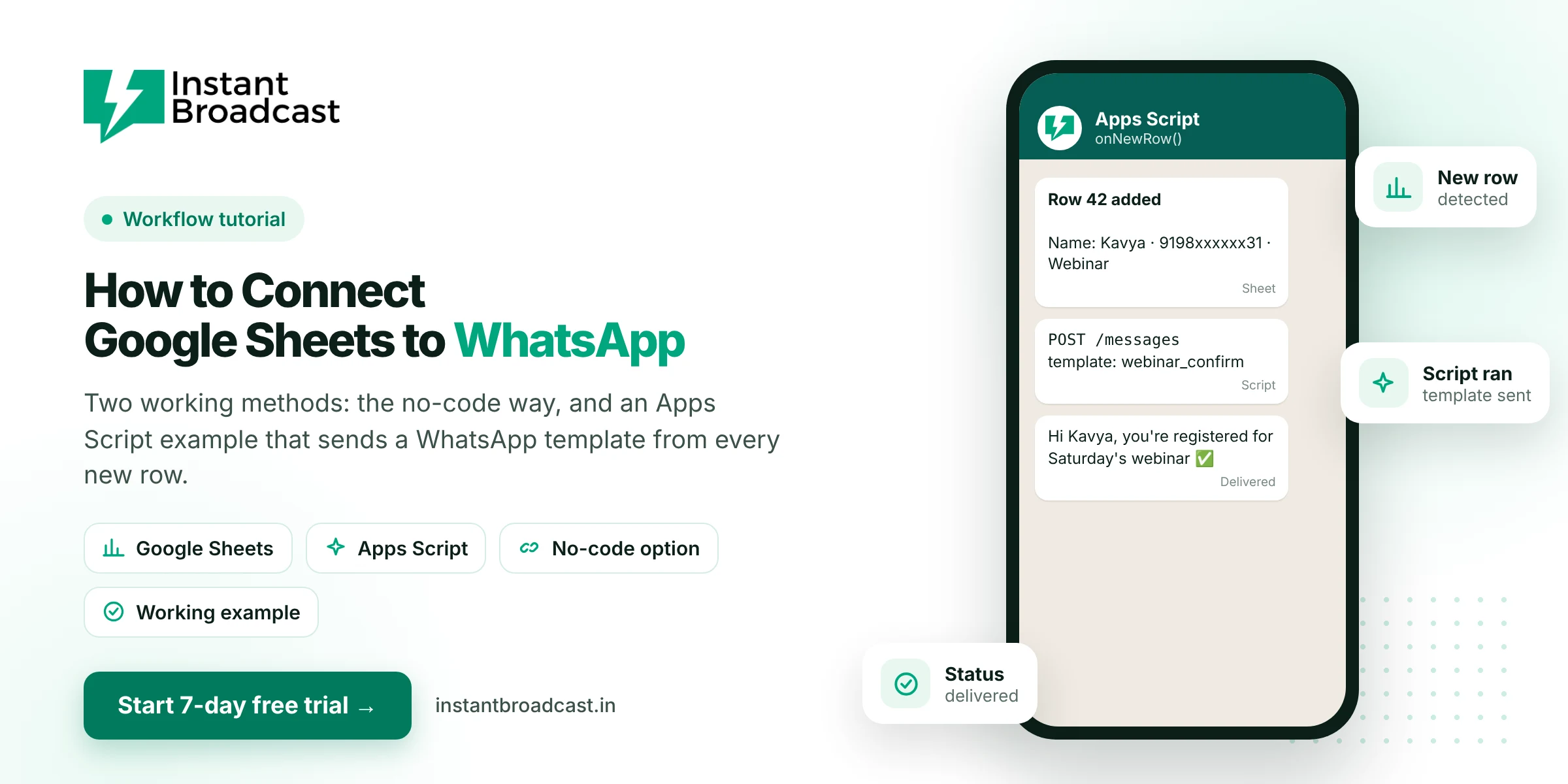
There are two good ways to connect Google Sheets to WhatsApp. The no-code way: connect the sheet to a WhatsApp Business API platform like Instant Broadcast and map columns to a message template. The developer way: a short Google Apps Script that calls the WhatsApp Cloud API and sends an approved template for every new row. Both use the official API, so you avoid the ban risk of WhatsApp Web automation tools. Below are both methods, with a working script you can copy.
How to Connect Google Sheets to WhatsApp: What We’re Building
A sheet called Leads, where every new row (from a Google Form, a website form or someone typing it in) automatically gets a WhatsApp message, and the sheet records whether it was sent.
| A: Name | B: Phone | C: Opt-in | D: Event | E: Status |
|---|---|---|---|---|
| Kavya | 919812345631 | Yes | Saturday webinar | Sent |
| Rahul | 919876543210 | Yes | Saturday webinar |
Two formatting rules prevent most failures: phone numbers must include the country code (91 for India) with no spaces, plus signs or leading zeros, and the Opt-in column should only say Yes for people who agreed to WhatsApp messages.
Before you start (both methods)
- Your business number connected to the WhatsApp Business API. See how to get it in India.
- An approved template. For this example: webinar_confirm with the body "Hi {{1}}, you're registered for {{2}}. We'll send the joining link an hour before." Registration confirmations are utility messages (₹0.15 each on our India rate card).
Method 1: No-code with Instant Broadcast
- In Instant Broadcast, open the integrations section and choose Google Sheets.
- Sign in with the Google account that owns the sheet and select the spreadsheet and the Leads tab.
- Map Phone to the recipient, Name to {{1}} and Event to {{2}}.
- Choose the trigger: send to existing rows now, or send whenever a new row is added.
- Add a test row with your own number, confirm the message arrives, then switch it on.
Replies land in your shared team inbox, so your team can carry on the conversation. If you'd like help, our team sets this up with you on a screen-share call.
Method 2: Google Apps Script (for developers)
This script reads the sheet, sends the template to every opted-in row that hasn't been sent yet, and writes the result into the Status column. It uses the request format documented by Meta for the WhatsApp Cloud API.
Step 1: Get your credentials
You need a phone number ID and a permanent access token from your WhatsApp Business setup in Meta's developer tools. If you're on a provider, ask them how API access works for your account.
Step 2: Add the script
In your sheet, open Extensions → Apps Script, delete the sample code and paste this:
// Columns: A Name | B Phone | C Opt-in | D Event | E Status
const PHONE_NUMBER_ID = 'YOUR_PHONE_NUMBER_ID';
const TEMPLATE_NAME = 'webinar_confirm';
const LANGUAGE = 'en';
const API_VERSION = 'v21.0'; // use the current version from Meta's docs

function sendPendingWhatsApp() {
  const token = PropertiesService.getScriptProperties().getProperty('WA_TOKEN');
  const sheet = SpreadsheetApp.getActiveSpreadsheet().getSheetByName('Leads');
  const rows = sheet.getDataRange().getValues();

  for (let i = 1; i < rows.length; i++) {
    const [name, phone, optIn, eventName, status] = rows[i];
    if (optIn !== 'Yes' || status === 'Sent' || !phone) continue;

    const payload = {
      messaging_product: 'whatsapp',
      to: String(phone).replace(/\D/g, ''),
      type: 'template',
      template: {
        name: TEMPLATE_NAME,
        language: { code: LANGUAGE },
        components: [{
          type: 'body',
          parameters: [
            { type: 'text', text: String(name) },
            { type: 'text', text: String(eventName) }
          ]
        }]
      }
    };

    const res = UrlFetchApp.fetch(
      'https://graph.facebook.com/' + API_VERSION + '/' + PHONE_NUMBER_ID + '/messages',
      {
        method: 'post',
        contentType: 'application/json',
        headers: { Authorization: 'Bearer ' + token },
        payload: JSON.stringify(payload),
        muteHttpExceptions: true
      }
    );

    const ok = res.getResponseCode() === 200;
    sheet.getRange(i + 1, 5).setValue(ok ? 'Sent' : 'Error ' + res.getResponseCode());
  }
}
Step 3: Store the token safely
Don't paste the token into the code. In Apps Script, go to Project Settings → Script properties, add a property named WA_TOKEN and paste your token as the value. Anyone who can edit the sheet can see the code, but not the script properties.
Step 4: Run it once, then automate
- Click Run and approve the permissions Google asks for.
- Check that the Status column fills with "Sent" and that the message arrives on your test number.
- Open Triggers (the clock icon) → Add trigger → function sendPendingWhatsApp → time-driven → every 5 or 10 minutes.
Now every new opted-in row gets its message within minutes, and the Status column stops anyone being messaged twice.
Troubleshooting
- Error 401: the token is wrong or expired. Generate a permanent token.
- Error 400 with a template message: the template name, language code or number of variables doesn't match the approved template.
- Message sent but never delivered: check the phone format and the recipient's WhatsApp account.
- Hitting limits: new numbers have a daily cap on business-started conversations. Send in batches.
Which method should you use?
If you want the sheet connected today and your team handling replies in a shared inbox, use the no-code integration. If you have a developer and need custom logic, such as different templates per row or extra conditions, the script gives you full control. Many businesses start no-code and add scripts only for special cases.
More ideas: see WhatsApp API integration with Google Sheets for common use cases.
Official references: Google Apps Script UrlFetchApp reference and Meta’s WhatsApp Business Platform documentation.
Frequently asked questions
Can I send WhatsApp messages from Google Sheets?
Yes. Either connect the sheet to a WhatsApp Business API platform like Instant Broadcast with no code, or use Google Apps Script to call the WhatsApp Cloud API and send approved templates.
Is sending WhatsApp messages from Google Sheets free?
No. Business-started messages are charged per message. Utility messages like registration confirmations cost ₹0.15 each on the Instant Broadcast rate card for India.
How should phone numbers be formatted in the sheet?
Include the country code with no spaces, plus signs or leading zeros, for example 919876543210.
Can a new Google Form response trigger a WhatsApp message?
Yes. Form responses land in a sheet, and either the no-code integration or a time-driven Apps Script trigger can message each new row.
Why does my Apps Script return error 400?
Usually the template name, language code or number of variables doesn't match the approved template.
Is it safe to put the access token in Apps Script?
Store it in Script properties rather than in the code, so people who can edit the sheet can't read it directly.
Can I use WhatsApp Web automation instead?
It's not recommended. Automating WhatsApp Web breaks WhatsApp's terms and risks your number being banned.
Do I need a developer to connect Google Sheets to WhatsApp?
No. The Instant Broadcast Google Sheets integration is no-code. The Apps Script method is for teams with a developer.