

How to Send Order Updates Through WhatsApp: A Guide for Online Sellers
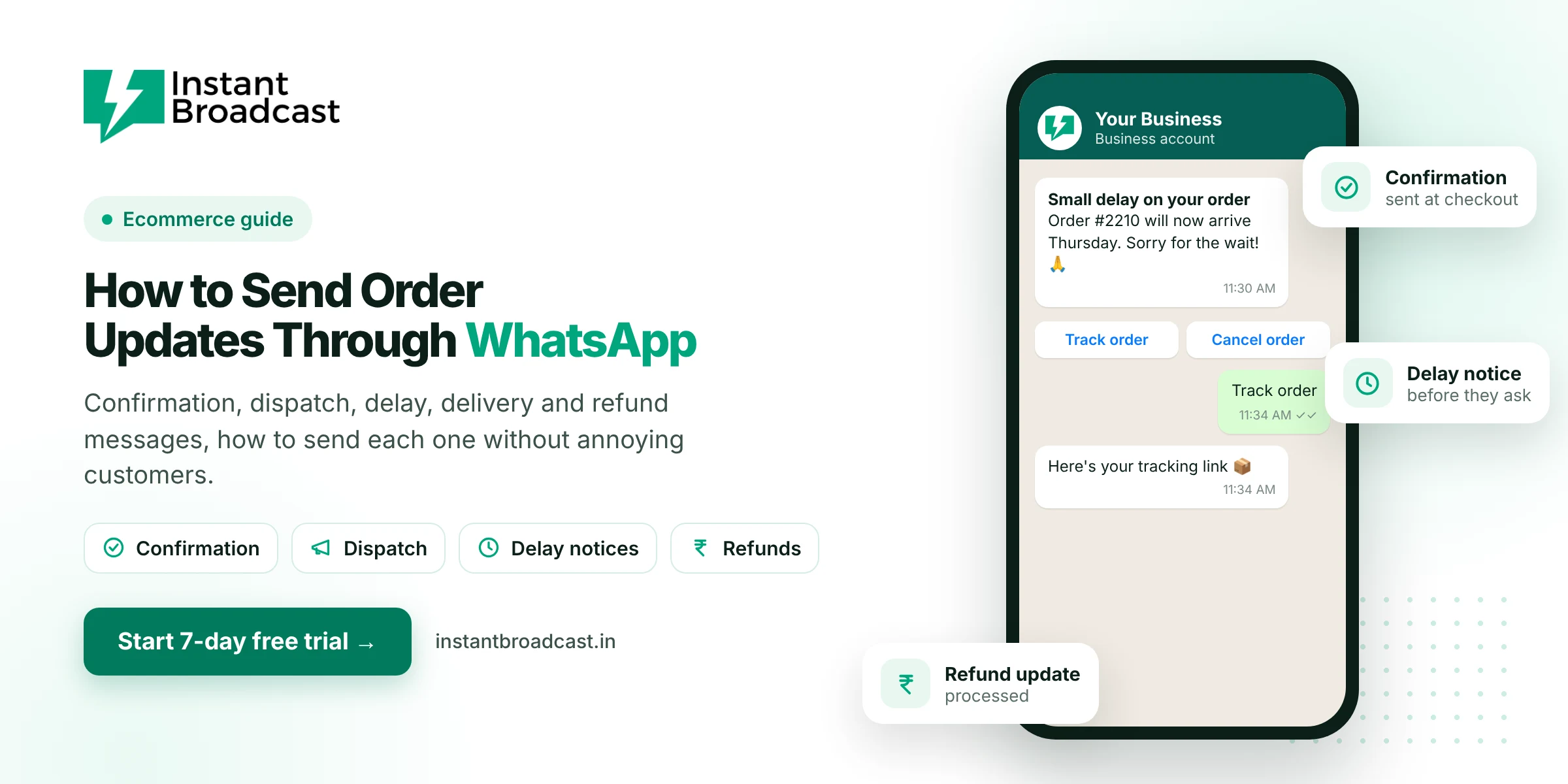
To send order updates through WhatsApp, connect your store to the official WhatsApp Business API, create approved utility templates for each stage (confirmation, dispatch, out for delivery, delivered, delay, return and refund), and trigger them automatically from your store or shipping data. Customers get updates where they actually look, and your team spends far less time answering "where is my order?"
Small sellers often start by sending updates by hand from the WhatsApp Business app. That's fine at ten orders a day. At fifty, it becomes someone's full-time job, and messages start slipping. Here's how to do it properly.
How to Send Order Updates Through WhatsApp: What Customers Want
| Stage | When to send | What it should say |
|---|---|---|
| Order confirmed | Within a minute of checkout | Order number, items, amount, payment mode |
| COD confirmation | Right after a COD order | Ask the customer to confirm with a button |
| Dispatched | When it leaves your warehouse | Courier name and tracking link |
| Out for delivery | Morning of delivery | "Arriving today", with a contact option |
| Delivered | On delivery | Thank you, plus help or review buttons |
| Delay | As soon as you know | New date and a short apology |
| Return or refund | At each step | Pickup date, refund amount and timeline |
The one most sellers forget is the delay notice. Telling customers about a delay before they ask is one of the easiest ways to prevent cancellations and angry reviews.
Example messages you can adapt
- Confirmation: "Hi Arjun, thanks for your order! Order #1088 for ₹2,150 is confirmed. We'll message you when it ships."
- Dispatch: "Good news, Arjun, order #1088 is on its way with Delhivery. Track it here: [link]"
- Delay: "Hi Arjun, sorry, order #1088 is running a little late. New expected date: Thursday, 14 Nov. Reply here if you need anything."
- Delivered: "Order #1088 has been delivered. Hope you love it! Tap below if something isn't right."
- Refund: "Your refund of ₹2,150 for order #1088 has been processed. It usually reflects in 5 to 7 working days."
Notice what's missing: no offers, no "use code SAVE10". Order updates should stay purely transactional. Mixing in promotions can make Meta classify the template as marketing, which costs more and annoys people who just want their parcel.
Three ways to send order updates
1. Manually from the WhatsApp Business app
Works for very small sellers. Use quick replies to save typing. The downsides: it doesn't scale, it depends on someone remembering, and customers who haven't saved your number may miss broadcast-style messages.
2. Automatically through a store integration
Connect Shopify or WooCommerce to Instant Broadcast, and order events trigger the right WhatsApp template on their own. This is what most growing D2C brands use. See how to integrate WhatsApp with Shopify.
3. Through the API from your own system
If you use a custom website, a marketplace panel or a shipping aggregator, your developer can call the REST API whenever the order status changes, sending the template name, customer number and order details.
Step-by-step setup
- Connect your WhatsApp business number to the API (start with the 7-day free trial).
- Add a WhatsApp opt-in line at checkout: "Get order updates on WhatsApp."
- Create one utility template per stage, with variables for name, order number, amount and tracking link.
- Connect your store or system and map each status to its template.
- Place a test order and walk it through every status.
- Route replies to your support team's shared inbox, with a chatbot answering simple questions.
What it costs
Order updates are utility messages: ₹0.15 each on the Instant Broadcast rate card for India. If you send four updates per order, that's about 60 paise per order. That's usually less than the cost of one "where is my order?" phone call.
Small details that make a big difference
- Use the customer's first name, not "Dear Customer".
- Always include the order number. People order more than once.
- Put the tracking link in a button where possible.
- Stop all updates the moment an order is cancelled.
- Send at sensible hours. "Out for delivery" at 7 AM is fine; marketing at 11 PM isn't.
Want the full automated sequence? See our WhatsApp order confirmation automation workflow.
Official references: Meta’s guide to WhatsApp message templates and the WhatsApp Business Messaging Policy.
Frequently asked questions
How do I send order updates on WhatsApp?
Connect your store to the WhatsApp Business API, create approved utility templates for each order stage, and trigger them automatically from your store or shipping system.
Which order updates should I send on WhatsApp?
Order confirmation, COD confirmation, dispatch with tracking, out for delivery, delivered, delay notices, and return and refund updates.
Can I send order updates from the WhatsApp Business app?
Yes, manually, which works for very small sellers. For more than a few orders a day, an automated setup through the API is more reliable.
How much do WhatsApp order updates cost?
They are utility messages at ₹0.15 each on the Instant Broadcast rate card for India.
Should I add offers to order update messages?
No. Keep order updates transactional. Promotions can make Meta classify the template as marketing, which costs more.
Can I send tracking links on WhatsApp?
Yes. Include the tracking link as a variable or a button in your dispatch template.
Do customers need to opt in for order updates?
Yes. Add a clear WhatsApp updates opt-in at checkout.
Does it work with Shopify and WooCommerce?
Yes. Instant Broadcast integrates with Shopify and WooCommerce, and custom systems can use the REST API.