
How to Create a WhatsApp Chatbot Without Coding (Step-by-Step Tutorial)
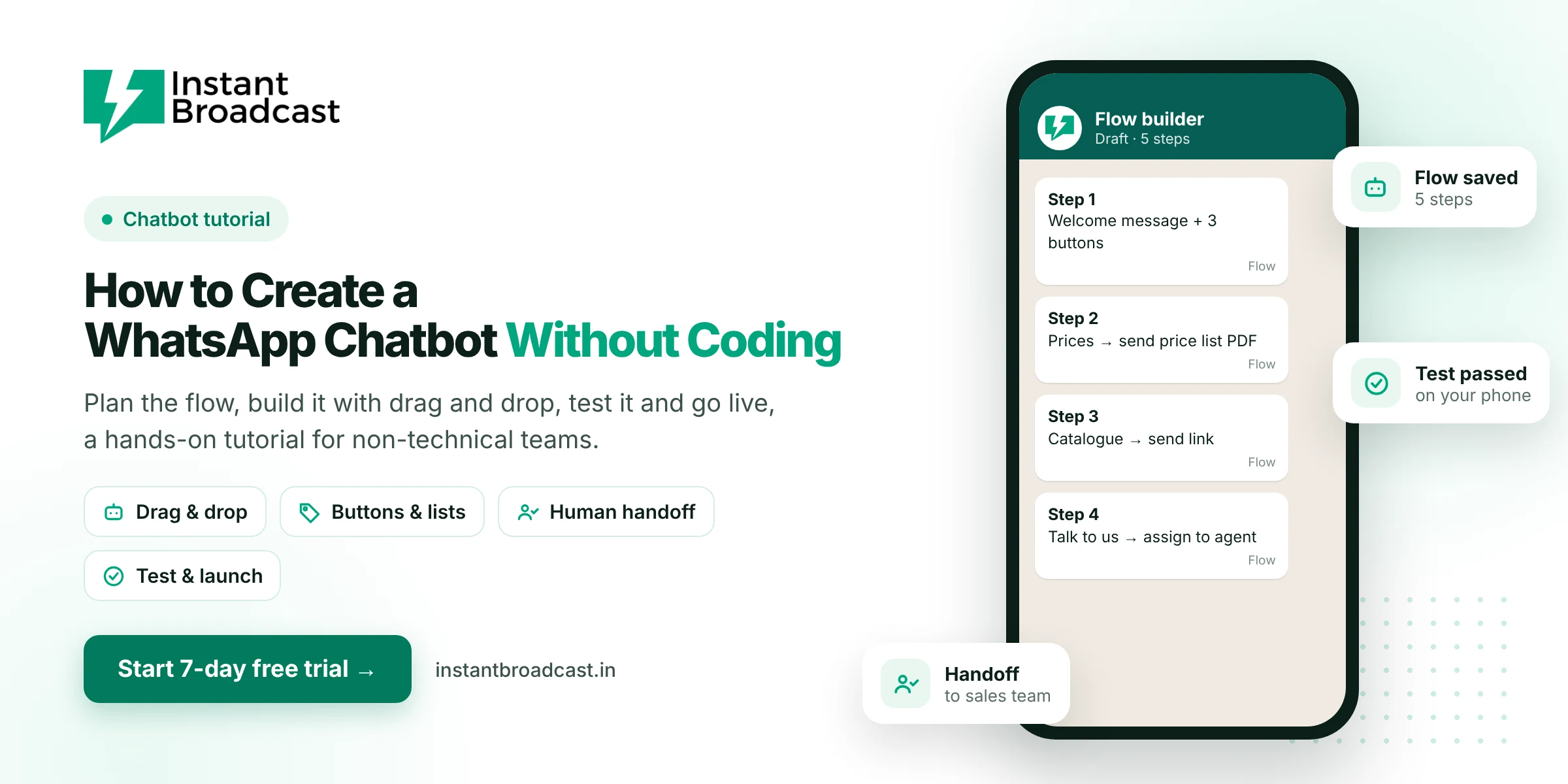
You can create a WhatsApp chatbot without coding by using a no-code flow builder on the official WhatsApp Business API. Plan your conversation on paper, drag in a welcome message with buttons, connect each button to an answer or a question, add a "talk to a person" step, then test it from your phone and switch it on. A useful first chatbot takes an afternoon, not weeks. Here's exactly how we'd do it.
How to Create a WhatsApp Chatbot Without Coding: Plan It on Paper First
The biggest mistake is opening the builder first. Spend twenty minutes with a notebook instead:
- List the ten questions customers ask most. Scroll back through last month's WhatsApp chats and write down the questions people actually asked.
- Group them into three or four buttons. For example: Prices · Products · Order status · Talk to us.
- Decide what "done" looks like. Is the goal to share a price list? Book a visit? Capture a lead's details? Each path should end somewhere useful.
- Decide who takes over. Which person or team gets the chat when the bot can't help?
Here's a simple plan for an electronics shop:
| Button | What the bot does | Where it ends |
|---|---|---|
| Price list | Sends the latest price list PDF | Asks "Want a call from our team?" |
| Service request | Asks for the product and model number | Assigns to the service team |
| Store timings | Shares timings and a location pin | Offers "Anything else?" |
| Talk to us | Says a person will reply shortly | Assigns to the next available agent |
Step 1: Get on the WhatsApp Business API
Chatbots that reply automatically on your business number need the official API. Start a free trial on Instant Broadcast and connect your number. Our setup guide walks through it.
Step 2: Create a new flow
Open the chatbot flow builder and start a new flow. Set the trigger, usually "when a new conversation starts" or "when a customer sends a keyword like hi or price".
Step 3: Write the welcome message
Keep it short and human. Compare:
- ❌ "Greetings! Thank you for contacting XYZ Enterprises. Kindly select from the following options to proceed further."
- ✅ "Hi! 👋 Thanks for messaging Sharma Electronics. What can we help with?"
Add your buttons below it. WhatsApp reply buttons work best with three or fewer options. For more, use a list message.
Step 4: Build each branch
Drag a block under each button:
- Send a message or file for answers (price list PDF, catalogue link, location).
- Ask a question to collect details (model number, city, budget), and save the answer to the contact.
- Add a tag such as "service-request" or "hot-lead", so your team can filter later.
- Assign to agent or team when a person should take over.
Step 5: Always add a way out
Every path should offer "Talk to a person" or "Back to menu". Nothing annoys customers more than a bot that loops. When the chat moves to a human, they see the whole conversation in the team inbox, so the customer doesn't have to repeat themselves.
Step 6: Test it like a customer
- Message your business number from a personal phone.
- Tap every button and type random things, like "hello?", a voice note or a spelling mistake.
- Check that files open and links work.
- Ask a colleague who didn't build it to try. They'll find the confusing parts in two minutes.
Step 7: Go live and review weekly
Switch the flow on. Each week, read 20 to 30 real chats. Where do people stop replying? What do they type that the bot doesn't handle? Add a button or answer for those, and remove anything nobody uses.
Tips that make a chatbot feel less robotic
- Write the way your best salesperson talks. Hinglish is fine if that's how your customers write.
- Use the customer's first name where you have it.
- Keep each message to two or three lines.
- Use emojis lightly. One per message is plenty.
- Don't pretend the bot is a human. Customers trust a clearly helpful bot more than a fake "Riya from sales".
When to add an AI chatbot
A flow chatbot is perfect for menus and common questions. If customers ask very varied questions, like detailed product specs, policies or comparisons, consider the AI chatbot add-on. It's trained on your website, PDFs and FAQs. The flow builder is included in every Instant Broadcast plan; the AI chatbot carries additional charges.
Using your chatbot to capture leads? Read WhatsApp chatbot for lead generation.
Official references: Meta’s WhatsApp Business Platform documentation and the WhatsApp Business Messaging Policy.
Frequently asked questions
Can I create a WhatsApp chatbot without coding?
Yes. With a no-code flow builder on the WhatsApp Business API, such as Instant Broadcast's, you build the chatbot by dragging blocks for messages, buttons, questions and handoffs.
Do I need the WhatsApp Business API for a chatbot?
Yes, for a real chatbot that replies automatically on your business number. The free WhatsApp Business app only has greeting and away messages.
How long does it take to build a WhatsApp chatbot?
A simple welcome menu with three or four branches can be built and tested in an afternoon once your number is connected.
How many buttons can a WhatsApp message have?
Reply-button messages work best with up to three options. For more choices, use a list message.
How do customers reach a real person?
Add a "Talk to a person" option that assigns the chat to an agent in the shared team inbox, with the full conversation history.
Is the no-code chatbot free?
The flow builder chatbot is included in all Instant Broadcast plans. Normal WhatsApp message charges apply, and the AI chatbot is a paid add-on.
Can the chatbot send PDFs and images?
Yes. Chatbot steps can send documents, images, links and location details.
How do I improve my chatbot after launch?
Read real conversations weekly, find where customers drop off or get stuck, and add or simplify steps.